

Releases Business
Releases give your workspace a dedicated space to group work items under a named version, monitor delivery progress, and publish a changelog. Whether you're shipping a minor patch or a major feature launch, Releases keep your team aligned on what's going in and how much is done.
How Releases work
A release is a named version that pulls together work items from any project in your workspace. As those work items move through their states, the release tracks progress automatically. When you're ready to ship, the release becomes the place to publish a changelog for the rest of the team.
Releases live at the workspace level. This means a single release can span multiple projects — useful when a feature launch involves work across multiple projects.
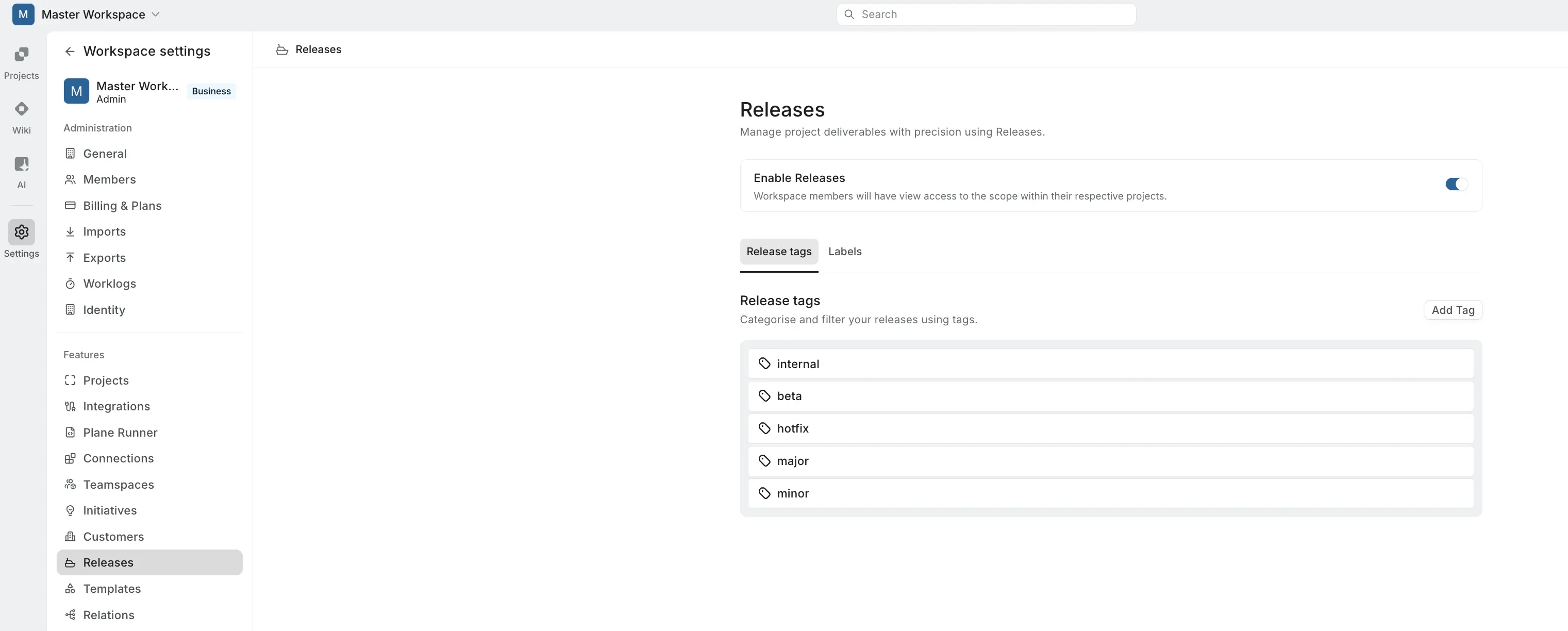
Activate Releases
Role: Workspace Admin
- Go to Workspace Settings > Releases.
- Toggle on Enable Releases.
Once enabled, Releases appears in the workspace sidebar for all members. Disabling the toggle hides the section but preserves all existing data — re-enabling restores everything.
Set up tags and labels
Role: Workspace Admin
Before your team starts creating releases, set up tags and labels to keep things organized. Both are managed from Workspace Settings > Releases and available across the workspace when creating or editing a release.
Release tags
Tags categorize releases across your workspace — useful for filtering by type, environment, or team. Switch to the Release tags tab and click Add Tag to create one.
Labels
Labels organize releases visually with a name and color. These are separate from the project-level work item labels. Switch to the Labels tab and click Add Label to create one.
Create a release
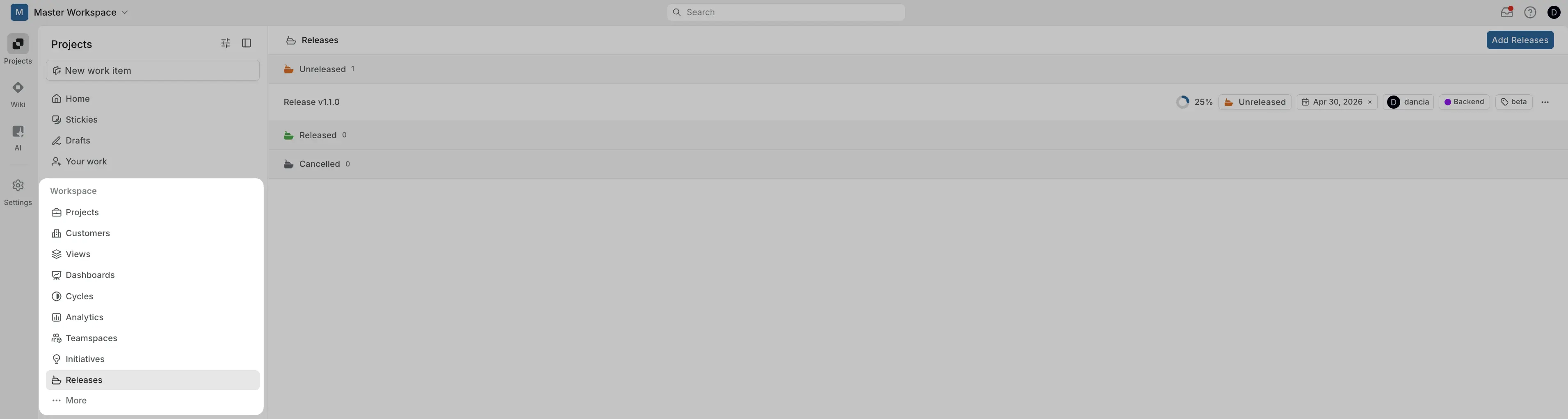
Click Releases in the workspace sidebar.
Click Add Release.
Fill in the release details:
Field Description Title Required. A short name for the release — for example, "v2.4 — Dashboard refresh." Description Goals, notes, or relevant links. Status Unreleased (default), Released, or Cancelled. Tag One or more tags from workspace settings. Labels One or more labels from workspace settings. Target date Planned ship date. Lead Responsible owner, selected from workspace members. Click Create Release.
You'll land on the release detail page, where you can start adding scope and writing the changelog.
Work with a release
Each release has three tabs: Overview, Scope, and Changelog.
Overview
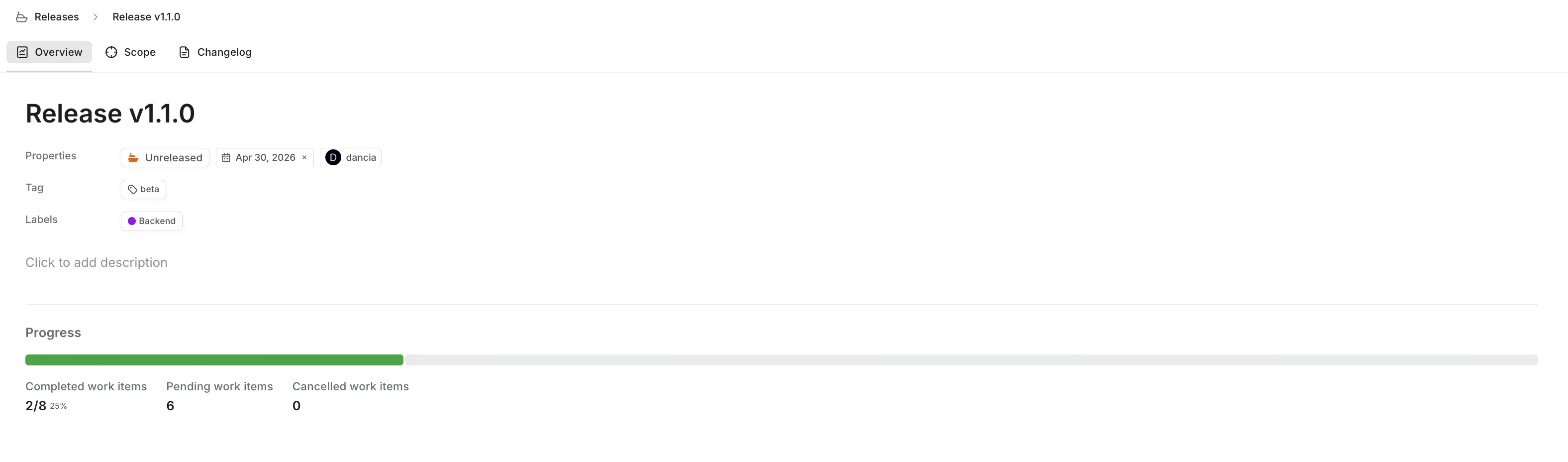
The Overview tab shows the release description, all selected properties, and a live progress tracker.
The progress bar fills proportionally as work items in the release are completed. Counters display completed work items (e.g., 18/22 — 82%), pending work items, and cancelled work items.
Click any property chip — Tag, Label, Lead, or Target date — to edit it inline. Click Click to add description to write or update the release description.
Release status
A release moves through three statuses that reflect where it is in its lifecycle:
- Unreleased — the default status when a release is created. Work is still in progress, and the scope and changelog are being built out.
- Released — the release has shipped. Use this to mark the release as complete and signal to your team that it's out.
- Cancelled — the release was abandoned. Use this when a planned release is no longer going forward, so the scope and history are preserved without cluttering your active releases.
Click the status chip on the Overview tab to change it. The Releases list groups releases by their status, so updating this keeps your list organized and makes it easy to see what's active, shipped, or cancelled.
Scope
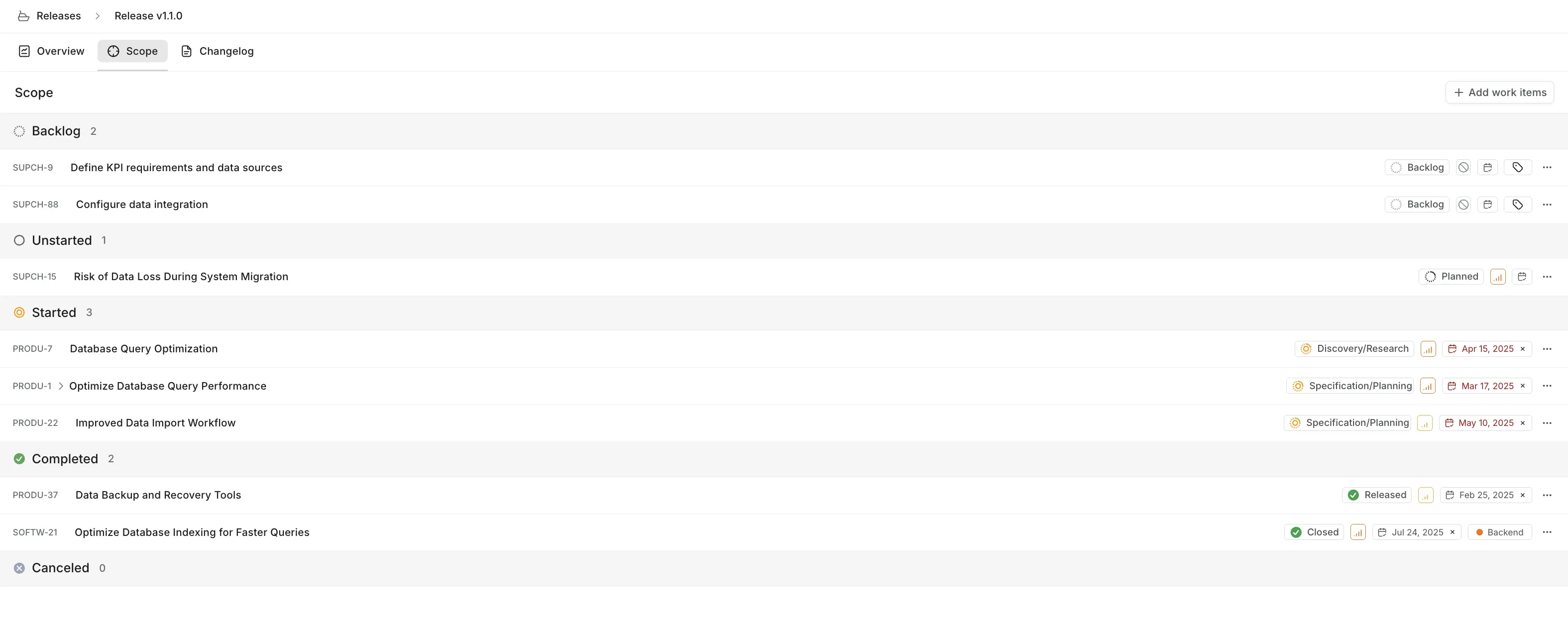
The Scope tab lists all work items attached to the release, categorized by state group. This is the source of truth for what's in the release.
Click Add work items to search and attach items by title or ID. Work items from any project in the workspace can be scoped to a release. To remove an item, hover over it and click the remove icon.
A work item's existing state drives the progress calculation automatically — you don't need to mark anything as "done in release" separately.
Changelog
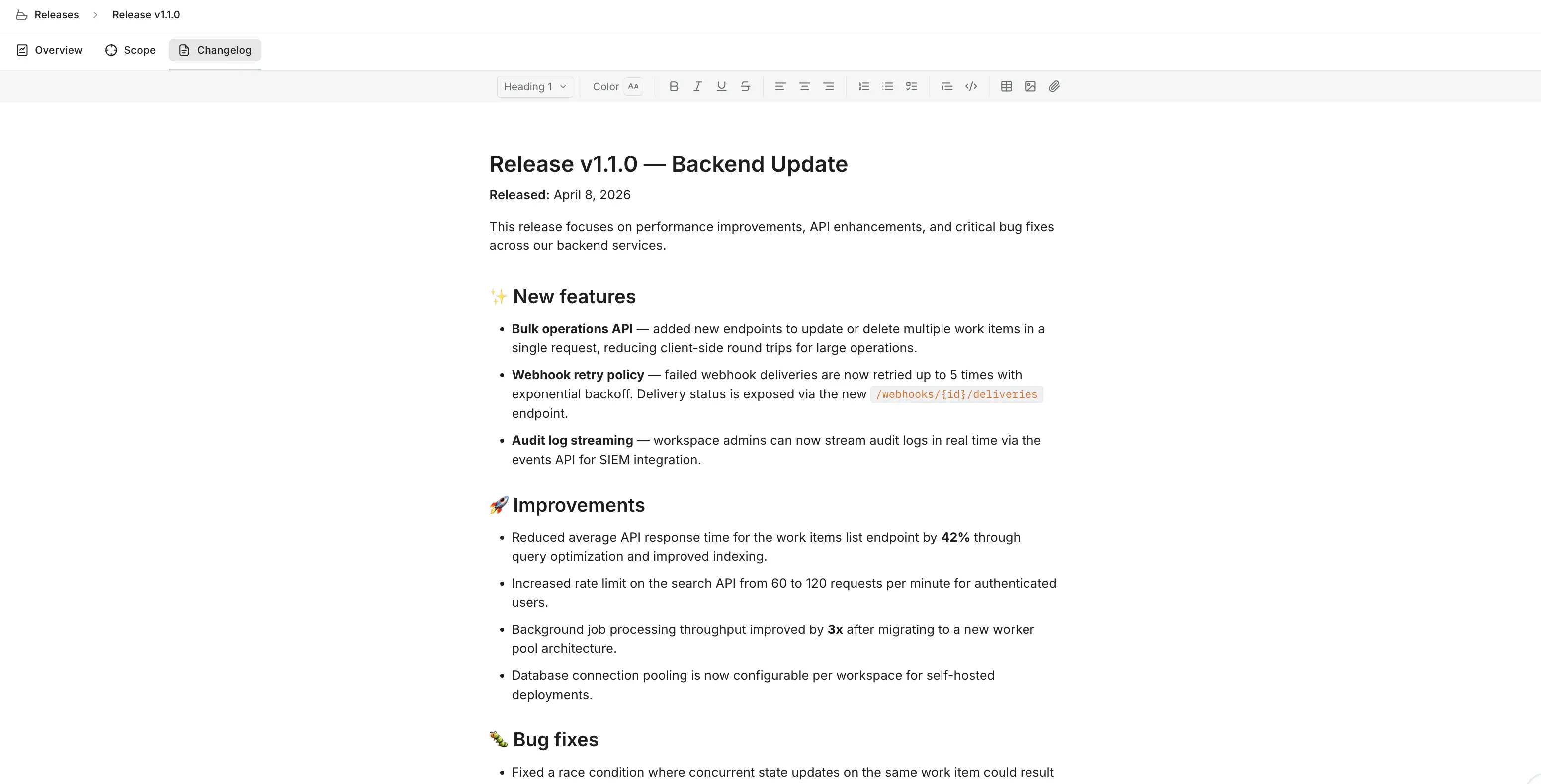
The Changelog tab provides a rich text editor where you write and publish a summary of what changed in the release.
The editor supports all the same blocks available in Pages and Wiki. Changes save automatically as you type, and the changelog is visible to all workspace members who can access the release.
TIP
Use the Scope tab to audit completed work items, then use the Changelog tab to write polished, user-facing notes based on that list.
Tag work items with a Release property
Plane supports Release picker as a custom property type on work items. This makes the release a first-class attribute on any work item, so members can assign work to a release without navigating to the Scope tab.
Add the Release property
Role: Project Admin
To add the Release property to a work item type:
- Go to Project Settings > Work item Types.
- Select the work item type you want to extend.
- Add a custom property of type Release.
Once added, the Release picker field appears in the work item detail view. Any project member can set which release a work item belongs to directly from there, and the work item will automatically appear in that release's Scope tab.
With release as a work item attribute, you can group, filter, and build dashboard views around release milestones, giving leadership visibility into delivery velocity per release.
TIP
When importing from Jira, Fix Version and Affects Version fields map cleanly to the Release property. Your release tagging data carries over without manual re-tagging.